Cut & Trim
Clean up recordings with waveform precision. Trim either edge, split at the playhead or remove an unwanted section from the middle, then close the gap automatically. Undo and redo make it easy to try an edit without losing earlier work.

Whether you’re producing music, recording a podcast, creating a video or preparing a lesson, edit, enhance and finish your audio in one connected toolkit.
Use in your browser No download Free to Start Simple to Use
Open a file and start editing right away—no download or account required. Cut a single recording or arrange up to six tracks, fine-tune every clip, preview the full mix and export the finished audio for free.

Clean up recordings with waveform precision. Trim either edge, split at the playhead or remove an unwanted section from the middle, then close the gap automatically. Undo and redo make it easy to try an edit without losing earlier work.
Place clips end to end to combine recordings, or layer voice, music and other audio on separate tracks. Move and adjust every clip independently, listen to the complete arrangement and export the timeline as one finished file.
Change pitch without changing the clip’s duration, or adjust speed independently from 0.25× to 4×. Slow down a difficult passage, shift audio into a more suitable key or find the right pace for your project.
Adjust the volume of each clip, boost quiet audio and normalize uneven recordings for more consistent levels. Add fade-in and fade-out, compare clips across tracks and preview the complete mix before export.
Take your audio beyond editing. Polish a finished mix, restore clarity to difficult recordings or separate a song into reusable parts with AudioMuse’s most popular AI tools.
Turn a finished mix into a clearer, louder and more balanced master. Choose a style and loudness target, preview the result and prepare your music for sharing or release.
Explore AI MasteringImprove clarity while reducing background noise, echo and buzz in speech or music. Turn difficult recordings into cleaner, more studio-quality audio.
Explore Audio EnhancerUse the Stem Splitter as a vocal remover to isolate vocals or create an instrumental version of any song. Make karaoke tracks, practise individual parts, build remixes or export separate stems for further editing.
Explore Stem SplitterChoose a project and follow a practical workflow from raw recordings to a finished podcast, song or video.
Prepare music for practice, remixing or release.
Start Editing Music for Free
Import a song or rehearsal recording, then find its key and BPM before practising, transposing or remixing.
Use Stem Splitter & Vocal Remover to isolate vocals, create an instrumental or export stems for a new arrangement.
Slow down difficult sections, change the pitch or use Audio Looper to repeat a phrase.
Trim sections, reorder clips and combine vocals, instruments and backing tracks on the multitrack timeline.
Use Audio Equalizer to adjust frequencies, then balance the volume of each track.
Create clear, well-paced podcast clips and voiceovers.
Start Editing Podcast Audio for Free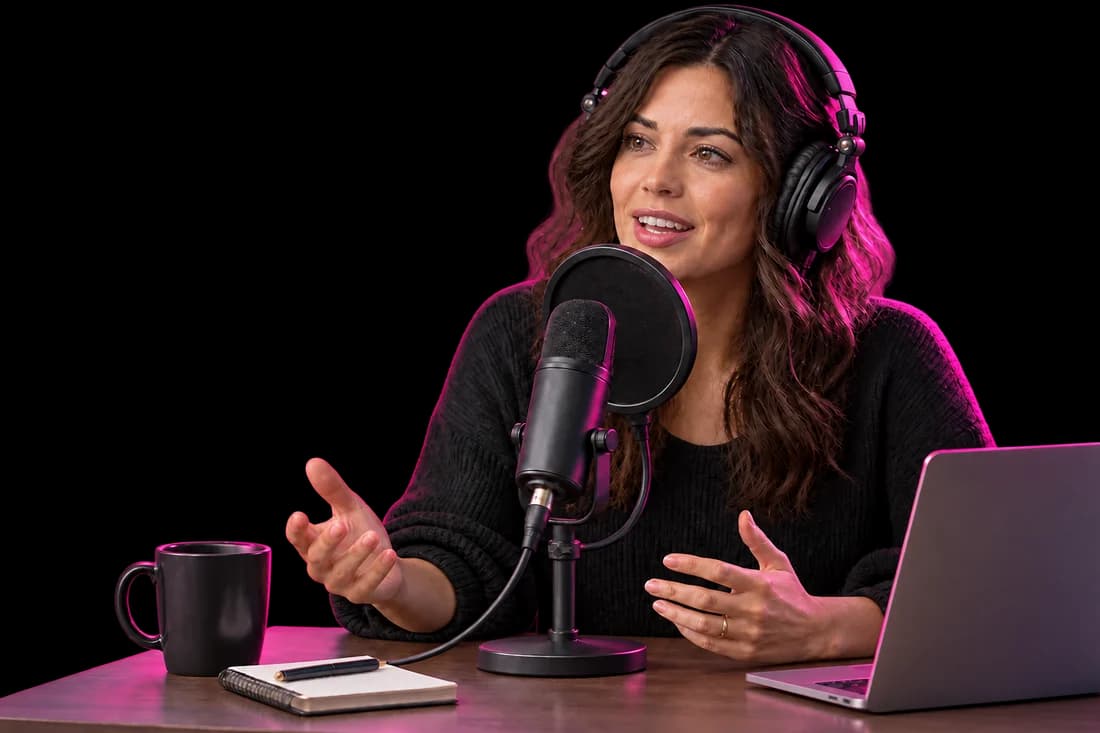
Record in the editor, or import MP3, WAV and M4A interviews, narration and retakes.
Use Noise Reducer to reduce background noise, echo and buzz while keeping voices clear.
Remove mistakes, repeated lines and unwanted takes, then shorten distracting pauses without losing natural pacing.
Adjust each speaker’s volume, normalize uneven recordings and use Audio Equalizer to improve voice clarity.
Mix in intro music, add fades and preview the complete episode before exporting MP3 or WAV.
Use Audio Compressor to reduce the file size, or add episode details with MP3 Tag Editor.
Give videos clear, balanced sound for sharing.
Start Editing Video Audio for Free
Open an MP4 to edit its original audio, extract the soundtrack or remove sound you no longer need.
Use Noise Reducer to reduce background noise before adding a voiceover to the video.
Replace the original soundtrack, or add narration, music and sound effects where they support the visuals.
Adjust the video, voice and music levels so speech stays clear without making the soundtrack feel too quiet.
Check the complete picture and sound together, then make final timing and volume adjustments.
Use Audio Compressor for a smaller soundtrack or Audio Converter when another format is required.
Edit, enhance and finish audio with free browser-based editors and focused AI tools—all in one place.
Open AudioMuse and start creating for free—no software to install and no upfront payment required.
Record, cut, merge and mix audio, then clean noise, separate vocals, convert formats, compress files or master the finished track.
Arrange voice, music and sound effects on a visual timeline. Trim clips, adjust levels, add fades and preview the complete mix.
Improve clarity, reduce unwanted noise, separate vocals and instruments, or use AI mixing and mastering for a polished finish.
Work with popular formats including MP3, WAV, M4A, FLAC, OGG and AAC, plus audio from MP4. Mix different source formats in one project and export for sharing or further production.
Audio Editor files are processed on your device, and optional projects stay in your browser. Tools that require cloud AI processing are clearly separated.
Upload a file and start cutting, mixing and polishing your audio for free—right in your browser.