MP3 Merger
MP3 01 → MP3 02 → MP3 03
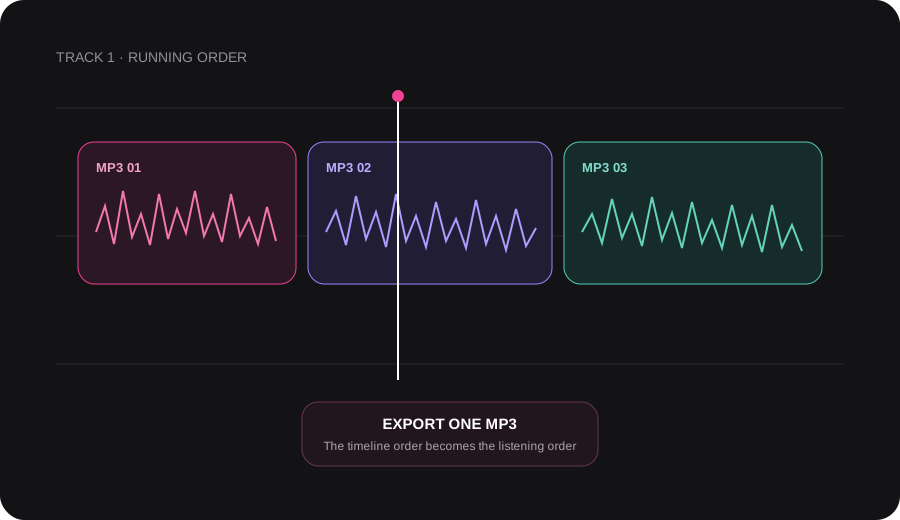
Add the next MP3 to the end of the same track, check the running order and export the complete sequence as one MP3.
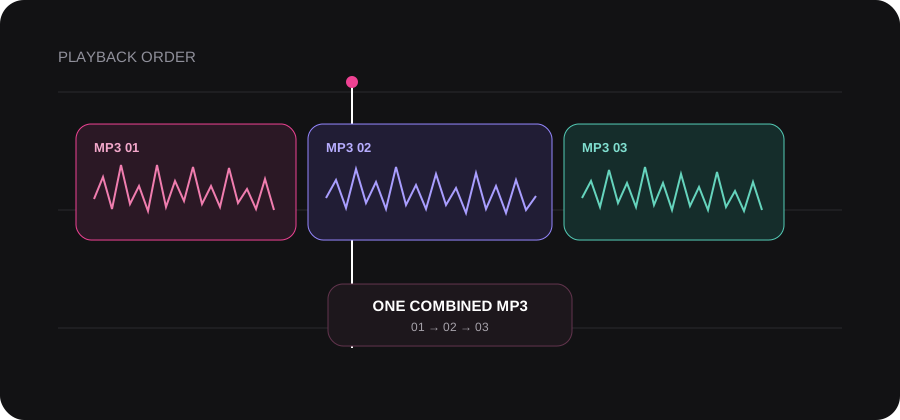

Merge multiple MP3 files in the order you want. Start with the first MP3, add the remaining clips in Audio Editor, then preview and export one continuous MP3.
No install · No sign-up · MP3 files processed in your browser
Starting with WAV, M4A or another format? Use Audio Merger
An MP3 merger, MP3 joiner or MP3 combiner places separate files end to end. The finished MP3 plays from the first clip through the last as one continuous track.
Add the next MP3 to the end of the same track, check the running order and export the complete sequence as one MP3.
Arrange the clips, remove unwanted edges and listen across each transition before creating the finished MP3.
Choose Add next audio to append another MP3 to the selected track. The visible timeline becomes the running order of the finished file.
What you can doBest for turning separate MP3s into one clear first-to-last sequence.
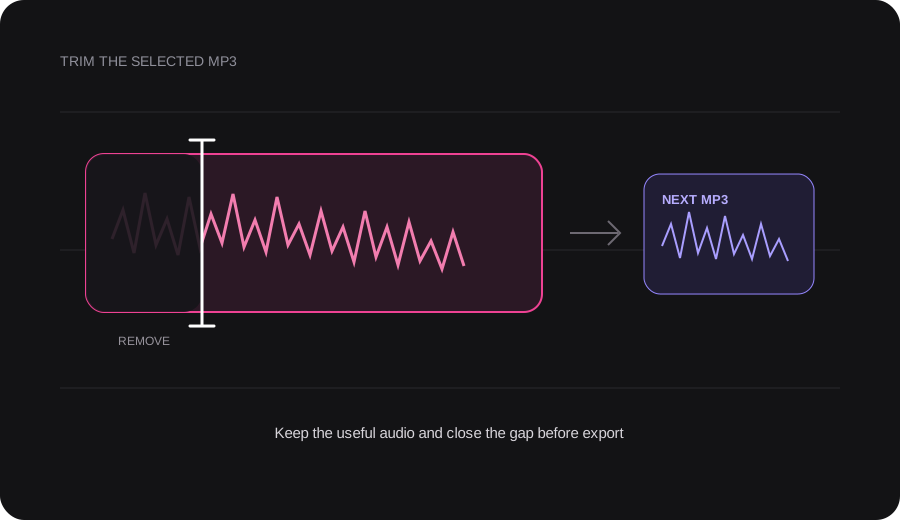
Shorten a false start, long ending or silent edge on an individual MP3 before the complete timeline is exported.
What you can doBest for making adjacent recordings meet at the right moment.
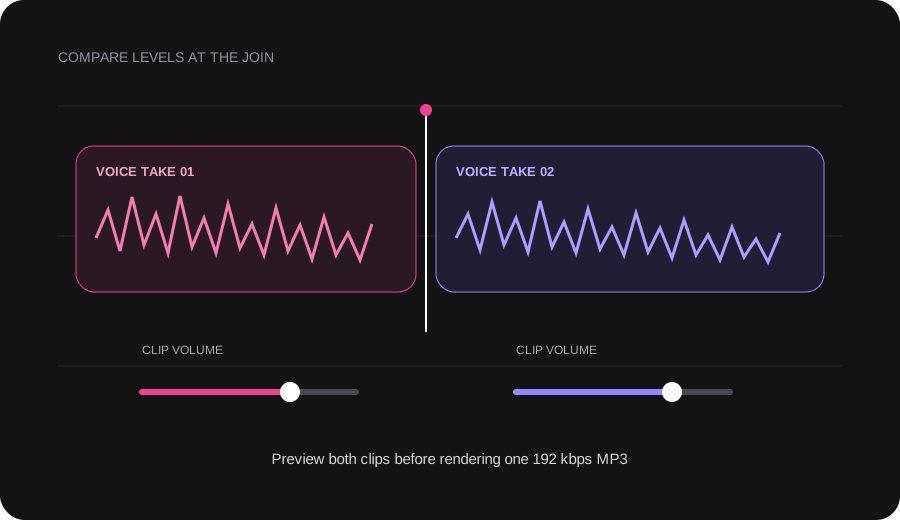
Select an MP3 and adjust its level when files recorded or mastered at different times do not sound equally loud.
What you can doBest for avoiding a distracting volume jump between MP3s.
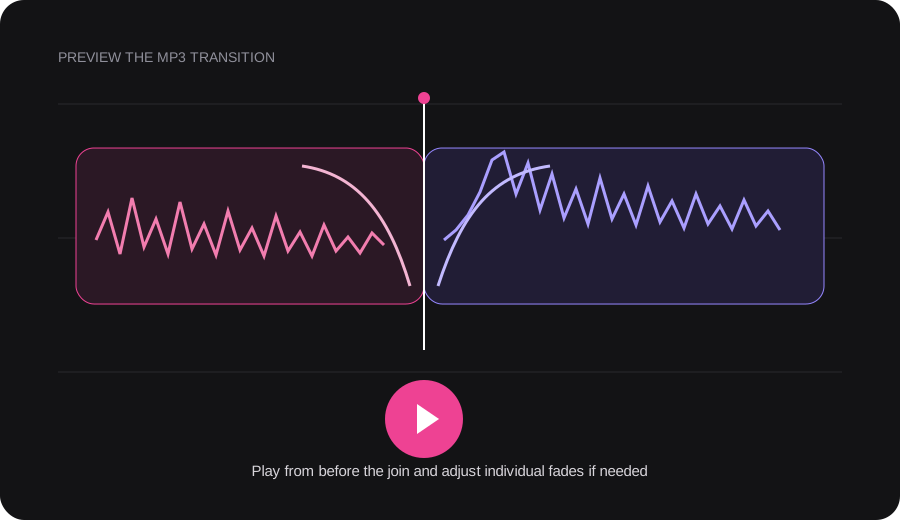
Set fade-in or fade-out on an individual clip, then play across the join. Automatic crossfade is not applied.
What you can doBest for keeping the result intentional without hiding the join from you.
Start with the first file on this page, then add every remaining MP3 inside Audio Editor without returning to the upload screen.
Choose the MP3 that should play first. It opens directly on a new Audio Editor timeline.
Choose Add next audio inside the editor. Each new MP3 is placed after the previous clip on the same track.
Check the running order, remove unwanted clip edges and listen from before each join. Adjust a clip if its volume is noticeably different.
Keep MP3 selected, choose Export Audio and download the complete sequence as one 192 kbps MP3.
Choose a practical workflow that fits the current 60-minute project limit.
When a narration, interview answer or voice note was recorded in short takes, one ordered MP3 is easier for someone else to open and follow.
Begin with the first useful take
Append the remaining recordings in speaking order
Trim false starts and check the level at each join

Connect a saved introduction, spoken section and ending when you need one compact MP3 rather than a full multitrack production.
Place the introduction first
Add the spoken section and ending
Preview the transitions and export one MP3

Put instructions, pronunciation examples or presentation sections into a single MP3 that students can play from beginning to end.
Start with the opening explanation
Append each example in teaching order
Listen through the complete lesson before download

Join rehearsal parts, approved previews or presentation music when every clip should finish before the next one begins.
Add clips in the intended running order
Trim extra silence or unwanted endings
Adjust obvious level differences and export

The editor creates a new listening file. Your source MP3s remain unchanged on your device.
The complete timeline is rendered into one 192 kbps MP3, regardless of the bitrates used by the individual source files.
The MP3 sources are decoded and encoded again. Finish your trimming and volume changes before export to avoid unnecessary additional compression passes.
Files from different recorders or music releases may still sound louder or quieter. Preview the joins and adjust individual clips when needed.
Need a different output format? Use Audio Merger. Need to work more deeply on one MP3? Open MP3 Editor.
Your recordings are decoded, arranged and rendered on your device. You can begin without installing software or creating an account.
Playback order, trimming, MP3 quality, file limits and browser privacy.
Upload the MP3 that should play first. In Audio Editor, choose Add next audio to append each remaining MP3 to the same track. Arrange the clips, preview the joins, then export one combined MP3.
Yes. Upload the first MP3 here, then use Add next audio in the editor to add the second. The second clip begins after the first one ends, and both are rendered into one MP3 when you export.
Yes. Add files in the intended order or move a clip on the timeline before export. Play from before a join to confirm the complete running order.
Yes. You can trim the beginning or end of an individual clip, close an unwanted gap and then export the complete sequence. Automatic crossfade is not applied, so fades and joins remain under your control.
The editor decodes the source MP3s and creates a new 192 kbps MP3. That means the result is re-encoded rather than joined byte for byte. Finish trimming and volume changes before exporting, and keep the original files.
Yes. Source files can use different MP3 bitrates because the complete timeline is rendered into one 192 kbps MP3. Bitrate conversion does not automatically match loudness, so preview files recorded or mastered at different levels.
Yes. You can join and export MP3 files without creating an account. The current editor supports projects with up to 48 clips and a combined timeline of up to 60 minutes.
No. MP3 files used in the editor are decoded, arranged and rendered in your browser. Optional Library projects stay in this browser and are not synced to an account or another device.
A project supports up to 48 clips and a total timeline of 60 minutes. Each imported file can be up to 300 MB and 60 minutes long.
MP3 Merger places clips end to end so they play one after another. Audio Mix puts sounds on separate tracks so voice, music and effects can overlap and play at the same time.