
Add Music to Photo Online
Add music, a voice recording or sound effects to one photo. Choose the part you want, adjust the timing and download a shareable MP4.
Free to use · No watermark · No sign-up · Processed in your browser
Turn one photo and one audio file into an MP4
A JPG or PNG cannot play sound by itself. AudioMuse places your photo on screen for the length of the audio and packages both into a video you can download and share.
- 1Upload a photo
Start with a local JPG or PNG.
- 2Add your own audio
Use music, speech or a sound effect.
- 3Get one MP4
Preview picture and sound together.
0:000:100:200:30
Your photo video is readyMP4 · picture and audio together
MP4What do you want your photo to say?
Start from the reason you are pairing the picture with sound. Each workflow opens the same timeline after the photo is uploaded.
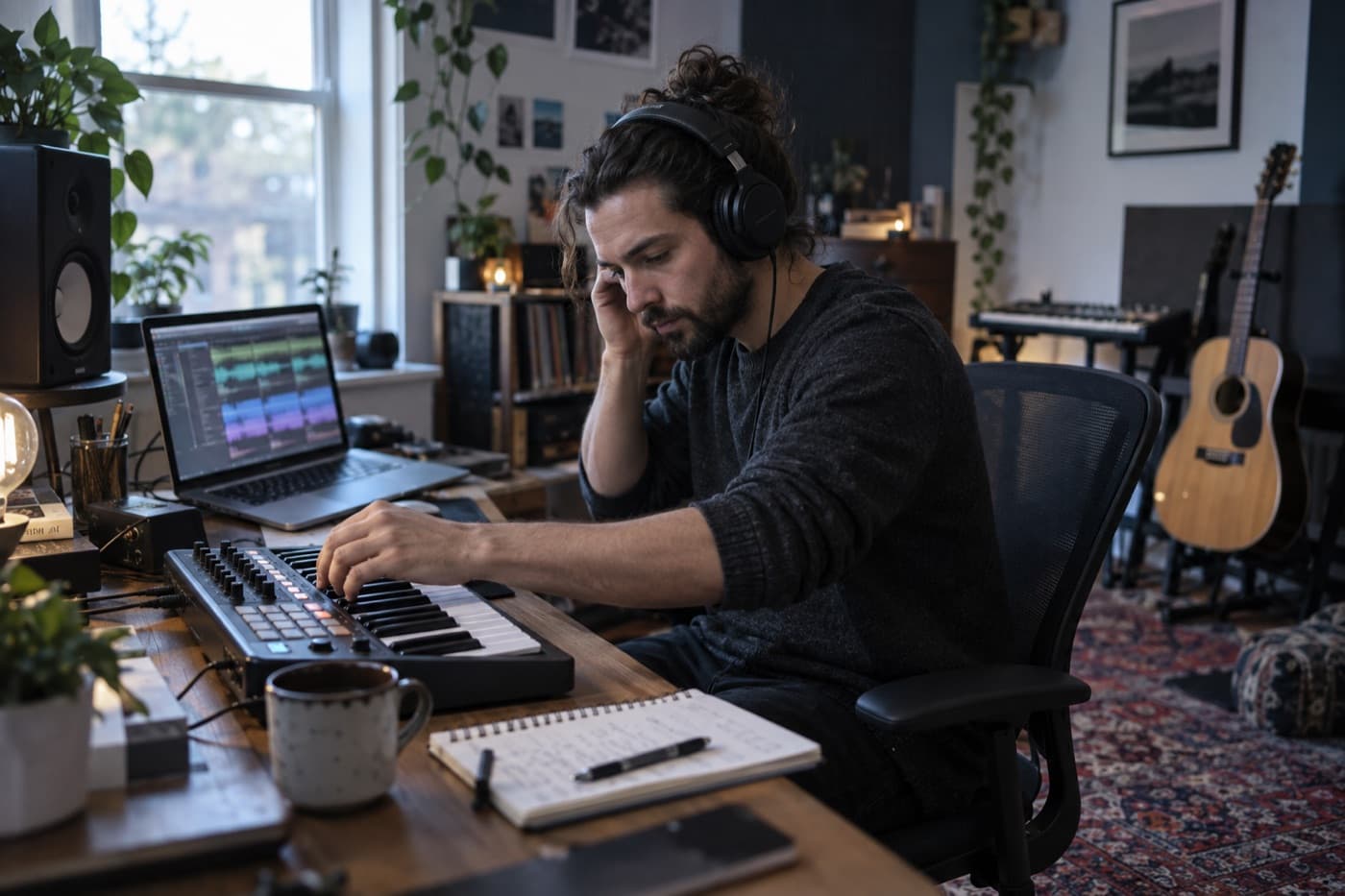
Give a song a picture people can watch
Use artwork, a portrait or a release image while the selected passage plays.
- 1Choose the cover image
Start with artwork or a photo that belongs with the recording.
- 2Add the useful song passage
Trim away unused silence, a long intro or ending.
- 3Export the music video
Download one MP4 with the picture held on screen.
Song audio · 00:36
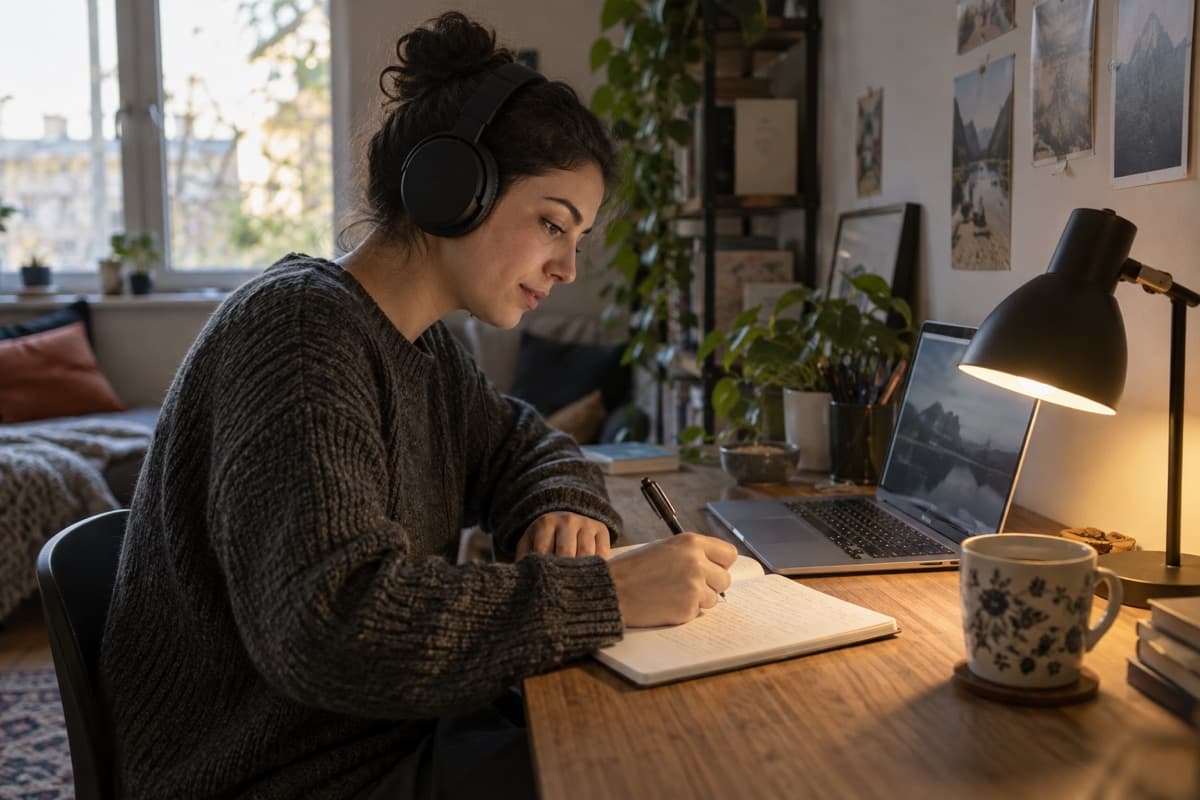
Put the sound of a memory behind one meaningful photo
Pair a birthday, travel or family picture with music that carries the feeling.
- 1Choose the photo
Use the picture that carries the memory.
- 2Find the right musical moment
Keep the chorus, verse or instrumental passage that fits.
- 3Soften the finish
Set the volume and add a fade-out before download.
Personal audio · 00:24
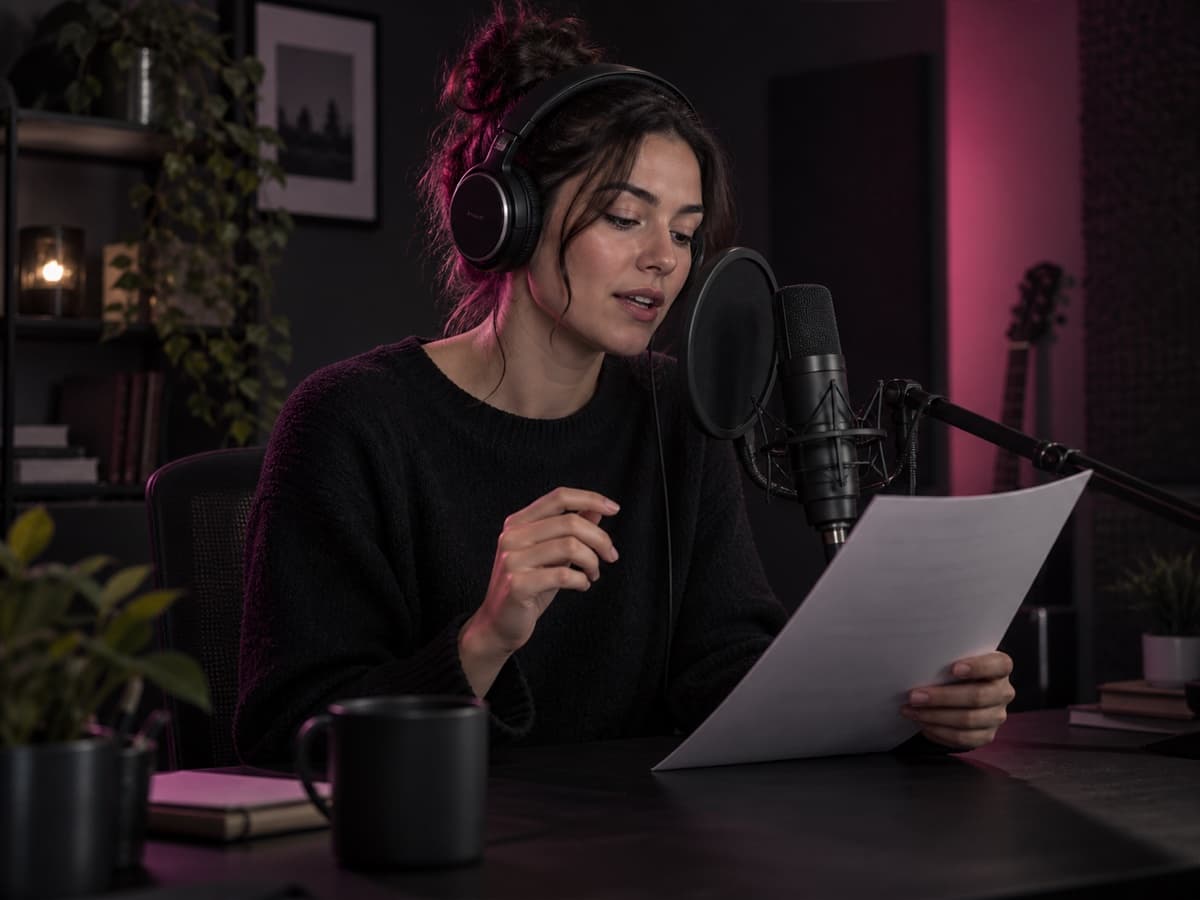
Let a voice tell the story behind the picture
Turn a spoken greeting, narration or podcast excerpt into a video people can play anywhere.
- 1Start with the visual
Use a portrait, quote card or podcast artwork.
- 2Add speech or record a take
Keep the clearest sentences and remove unused sections.
- 3Keep speech easy to hear
Add music on another track and lower it beneath the voice.
Voice audio · 00:42
Fit the sound to the picture
Use the part of the audio that fits the photo
You do not need to use an entire song or recording. Keep the passage that carries the moment, then decide how it begins and ends.
- Select the useful passageTrim an intro, ending or unused section.
- Match the durationThe first audio track can set how long the photo stays visible.
- Balance and fadeAdjust volume and soften the entrance or ending.
0:000:120:240:360:48
How to add music to a photo online
Three connected steps take the picture from your device to a finished MP4.
Upload your photo
Choose one JPG or PNG. It becomes the still-image clip on the video timeline.
Add music or voice
Import a local recording, choose the useful passage and adjust its volume or fades.
Preview and download MP4
Listen with the photo on screen, then export one video without a watermark.
A focused way to give one photo a soundtrack
The page stays simple while the editor provides the timing and audio controls needed for a clean result.
Processed in your browser
Your local photo and audio stay on this device instead of being uploaded to an AudioMuse processing server.
No account or watermark
Open the editor directly, finish the clip and download the MP4 without creating an account or adding a logo.
Download a shareable MP4
The photo remains still while the selected audio plays. The result is a video rather than a modified JPG or PNG.
Start with JPG or PNG up to 5 MB and 25 megapixels. Keep the finished sequence within 10 minutes. Browser codec support and available device memory can limit some files.
Add music to photo FAQs
Answers about adding MP3 or voice to an image, MP4 output, privacy, formats and album artwork.
How do I add music to a photo?
Upload one JPG or PNG photo, add a local music or voice file in the editor, choose the part you want and download the result as MP4. The first audio track can set the photo duration automatically, and you can adjust it before export.
Can a JPG or PNG photo contain audio?
No. JPG and PNG files do not contain a playable audio track. AudioMuse keeps the photo on screen while the sound plays and exports both together as an MP4 video.
Can I add an MP3 to a picture?
Yes. Start with the picture, then add an MP3 in the editor. You can trim or split the recording, adjust its volume and add fade-in or fade-out before exporting MP4.
Can I add a voice recording instead of music?
Yes. Upload an existing voice recording or record with your microphone in the editor. You can also keep voice and background music on separate tracks so their volume can be adjusted independently.
Can I choose only part of a song?
Yes. Trim the beginning or end, or split the audio to keep a chorus, verse, quote or other useful passage. The original audio file is not overwritten.
Can I use more than one audio track?
Yes. The editor supports separate tracks for music, voice and sound effects. The focused entry starts with one photo, but you can continue arranging more media inside the full timeline.
Is adding music to a photo free and private?
Yes. Editing and MP4 export are free, with no watermark or sign-up. Local files are processed in your browser rather than uploaded to an AudioMuse processing server.
View all 10 questionsShow fewer questions
Does this animate the person or object in my photo?
No. The picture remains a still image while the selected audio plays. This is a photo-and-audio video maker, not an AI image animation tool.
Is this the same as adding album art to an MP3?
No. This page creates an MP4 video from a picture and audio. To store a cover image inside an MP3 file without creating video, use AudioMuse MP3 Tag Editor.
Which formats and limits can I use?
Start with one JPG or PNG image up to 5 MB and 25 megapixels. The editor accepts common local audio formats including MP3, WAV and M4A. Keep the finished sequence within 10 minutes; available browser memory can impose lower practical limits.
Give your photo the sound it deserves
Upload the picture first, then choose the music, voice or sound effect that carries the moment.
Upload a photo